Most people use AI like a search box: one question, one answer, start again. But the biggest wins in AI for virtual assistants and online business managers come from treating AI like a teammate. You hand it a whole job with a clear brief, it does the first draft, and you review and approve.
Done well, this can turn an hour of report writing or SOP drafting into a short editing session. Done carelessly, it can leak client data or send something that should never have gone out. In this guide we show you both sides: how to brief AI well, 10 whole jobs to hand off, and the privacy and approval rules every VA and OBM should follow.
We use Claude in our examples because it’s what we use every day, but the same principles work with other AI tools.
How to work with AI like a teammate: the quick answer
- Hand AI whole jobs, not single sentences.
- Use the brief formula: goal, context, examples, constraints, output and “ask me questions first”.
- Set up one Claude Project per client so it remembers how that client works.
- Connect tools only with the client’s permission and the least access needed.
- Approve anything that sends, publishes, pays, deletes or changes settings yourself.
- Never paste passwords, card numbers, bank details or government IDs into AI.
- Review every output like an editor before it reaches a client or team.
AI for virtual assistants and OBMs: from prompts to teammate
This works whether you’re a VA doing tasks or an OBM running operations (see online business manager vs virtual assistant if you’re not sure which you are). Here’s the difference. A one-line prompt sounds like “write an email to the team about the launch.” A teammate brief sounds like what you’d give a smart new contractor on their first day: what we’re trying to do, who it’s for, what good looks like, what to avoid and what you want back.
The more context you give, the less you have to fix. And when Claude asks you questions before it starts, you catch misunderstandings before they turn into rewrites.
The brief formula
Use these six parts every time you hand off a job:
- Goal: what the finished work should achieve.
- Context: the client, the audience, the project and anything Claude needs to know.
- Examples: a past report, an SOP you like or a sample of the client’s tone.
- Constraints: length, format, tone, deadlines and things to avoid.
- Output: exactly what you want back, like a table, a checklist or an email draft.
- Questions first: “Ask me questions first if anything is unclear.”
Do it with AI: here’s a full brief to paste into Claude: “Goal: draft this week’s owner report so the owner can read it in five minutes. Context: I’m the online business manager for [TYPE OF BUSINESS]. The owner cares most about [PRIORITIES]. Examples: here’s last week’s report for format and tone: [PASTE]. Constraints: under 300 words, plain language, no jargon, flag anything that needs a decision. Output: sections for wins, numbers (with change from last week), risks, decisions needed and next week’s priorities. Here are this week’s numbers and notes: [PASTE, WITH NO PRIVATE CUSTOMER DETAILS]. Ask me questions first if anything is unclear.” Then check every number against your source and edit the wording before you send it.
Set up Claude like a teammate
Claude has several features that make the teammate approach easier. Features, names and plan availability change often, so check Claude’s help center at support.claude.com for what’s current on your plan.
Projects: one per client
A Claude Project holds instructions and files that every chat in that project can use. Add the client’s background, tone of voice, team roles, your templates and their SOPs, and Claude starts every chat already knowing how that client works. Keeping one Project per client also keeps each client’s information separate.
Connectors: working from real files
Connectors let Claude work with tools like Google Drive, Gmail and Google Calendar, and others, so it can read real documents and draft from them. Only connect a client’s tools with the client’s permission, through their own sharing or delegated access, and with the least access needed. Claude can only see what the connected account can see, so give yourself access to just the folders and calendars the job requires.
Scheduled tasks: repeat work on autopilot
Claude can run a saved task on a schedule, for example a Monday morning summary of last week’s tasks and this week’s deadlines. Scheduled work should produce drafts and summaries for you to review, not send things on your behalf.
Files, browser help and more
Claude can create documents, spreadsheets and simple dashboards, and the Claude in Chrome extension can help with tasks inside web pages. Use these for drafting and organizing, and keep a human (you) in charge of anything final.
10 whole jobs to hand off to AI
These are jobs VAs and OBMs do every week. For each one, give Claude the inputs, use the brief formula and check the output.
- Meeting notes to project plan: paste messy notes or a voice-memo transcript and get tasks, owners, due dates and open questions. Check: dates, owners and anything Claude guessed.
- Rough description to SOP: describe a process out loud or paste a screen-recording transcript and get a clear, numbered SOP. Check: test it with the person who does the task.
- Numbers to weekly owner report: paste your KPI sheet and notes and get a short report with wins, risks and decisions needed. Check: every number against the source.
- Inbox triage: have Claude sort emails into urgent, reply today, delegate and file, with draft replies for the simple ones. Check: tone, facts and anything sensitive before sending.
- Task list cleanup: paste an overflowing task list and get it grouped, deduplicated and prioritized. Check: that nothing important was merged away.
- Hiring kit: get a job post, interview questions and a scorecard for a new contractor role. Check: fairness, accuracy and local rules (hiring and contractor questions are legal ones, so check with a professional if unsure).
- Launch timeline: give the launch date and deliverables and get a backward-planned timeline and checklist. Check: realistic time for each step and team availability.
- Tech stack audit: paste a list of tools and what each is used for and get overlaps, gaps and questions to ask. Check: current features and pricing directly with each tool.
- Thread summary and client update: paste a long email or chat thread and get a summary, decisions made and next steps. Check: nothing was misread or left out.
- Monday plan and Friday wrap-up: get a weekly plan from your task list and calendar, and a Friday summary of what got done and what’s carrying over. Check: priorities match what the client actually wants.
Do it with AI: try job 2 in Claude: “Goal: write an SOP for [TASK] that a new VA could follow without help. Context: this is for [TYPE OF BUSINESS] and the task is done in [TOOLS]. Here’s my rough description or transcript: [PASTE]. Constraints: numbered steps, one action per step, note where a screenshot would help, and add a ‘common mistakes’ section. Output: title, purpose, who does it, when, tools needed, steps and a review date. Ask me questions first if anything is unclear.” Then test the SOP with the person who does the task and fix any step that confuses them.
Privacy and approval rules for client data
Clients trust you with their business. These rules keep that trust intact:
- Get the client’s OK first: ask before using AI with their information, and follow any company policies they have.
- Never paste sensitive data: no passwords, card numbers, bank details or government IDs, ever.
- Use the least access needed: share only the folders, inboxes or calendars the job requires.
- No shared logins: use a password manager and each tool’s shared or delegated access.
- You approve the big actions: anything that sends, publishes, pays, deletes or changes settings gets your review and approval every time. By default, Claude asks for approval before actions like sending an email, but you’re still the one responsible.
- Keep clients separate: one Project per client, and never mix one client’s information into another’s work.
- Strip what you don’t need: remove customer names and private details from data you paste if the job doesn’t need them.
A simple AI use policy to share with clients
Being open about AI builds trust. Here’s example wording you can adapt for your onboarding documents:
“I use AI tools, including Claude, to draft and organize work such as reports, SOPs and plans. I only use AI with your information with your permission, I never enter passwords or financial details, and I review every output before it reaches you or your team. Nothing is sent, published, paid or deleted without human approval.”
This is general guidance, not legal advice. If a client works in a regulated field or has strict data rules, follow their policies and suggest they check with a professional.
Review like an editor
You are the editor and the one responsible. Before anything goes to a client or team, run through this quick check:
- Facts and numbers: do they match the source exactly?
- Names and dates: are the right people, deadlines and days listed?
- Tone: does it sound like you or the client, not like a robot?
- Sensitive details: is anything private included that shouldn’t be?
- Your signature test: would you happily put your name on it?
Tip: when Claude gets something wrong, don’t just fix it yourself. Tell it what to change and why, then add that note to the client’s Project instructions so it gets it right next time.
Where to start: VAs vs OBMs
If you’re a VA, start with jobs 4, 5 and 9: inbox triage, task list cleanup and thread summaries. They save time right away, build your briefing skills and fit almost any item on our virtual assistant services list. Our guide on how to make money with AI has more ideas.
If you’re an OBM, or moving toward it, start with jobs 1, 2 and 3: project plans, SOPs and the weekly owner report. These are the heart of OBM work, and they’re where AI saves the most time. See how to become an online business manager for the full path.
AI makes good work faster, but it doesn’t replace judgment, relationships or follow-through. Your results depend on your time, skills and effort, and the VAs and OBMs who do best use AI to free up time for the human parts of the job.
Five ready-made AI assistants for OBM work
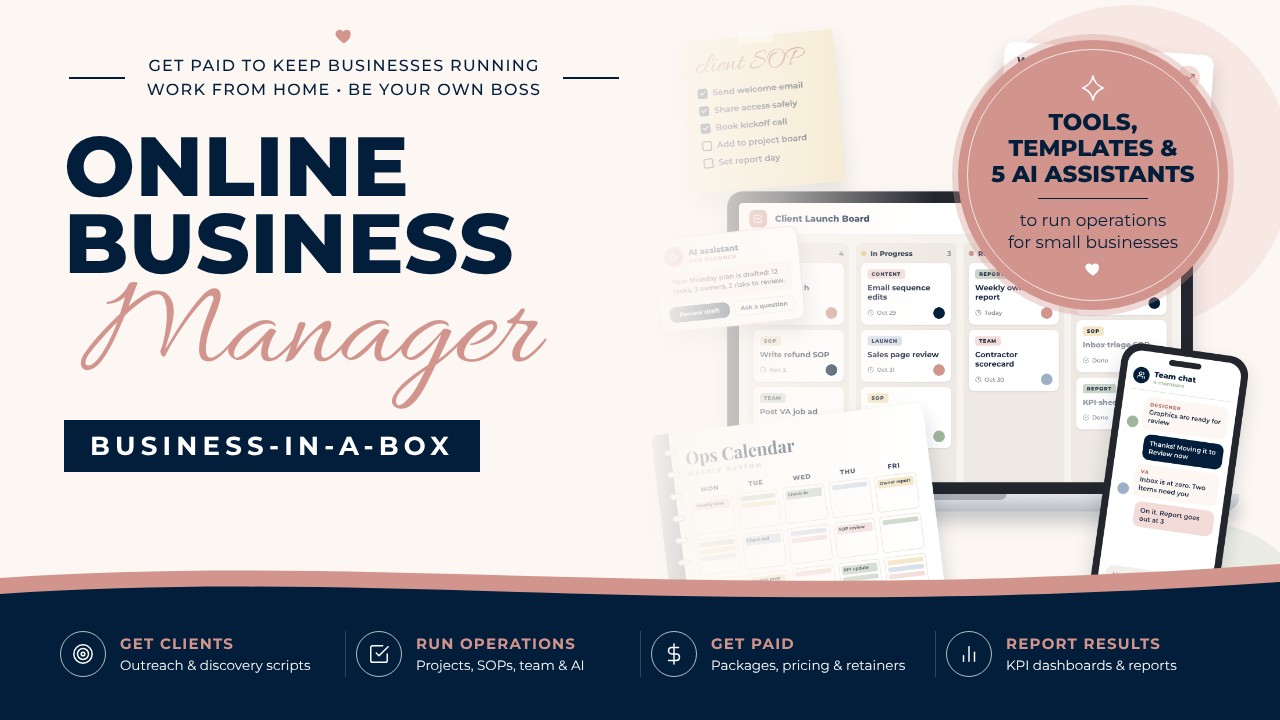
Our Online Business Manager Business-in-a-Box gives you 12 modules, 52 short written lessons, 18 templates and 5 AI assistants in Claude (Ops Planner, SOP Writer, Team and Hiring Helper, Report Writer and Client Finder), plus the AI Ops Playbook bonus with 50 AI workflows. It’s $197, self-paced, with no videos to sit through.
AI for VAs and OBMs FAQ
Will AI replace virtual assistants?
AI handles more first drafts and repetitive tasks, but clients still need someone they trust to decide what to do, check the work and keep things moving. VAs who use AI well can take on higher-value work and move toward OBM roles.
Is it safe to use AI with client data?
It can be, with the right rules: get the client’s OK, follow their policies, use the least access needed, never paste passwords or financial details, and review everything before it’s sent or shared.
What is a Claude Project?
A Project is a workspace in Claude with its own instructions and files. Every chat in that Project uses them, so Claude remembers how that client works. Features and limits change, so check Claude’s help center for the current details.
Should I tell clients I use AI?
Yes. Being open builds trust. A short AI use policy in your onboarding documents explains how you use AI, what you never share and that a human approves everything.
What’s the best first job to hand off to AI?
Turning meeting notes into a task list is a great first job. It’s low risk, saves time right away and teaches you how to write a good brief.
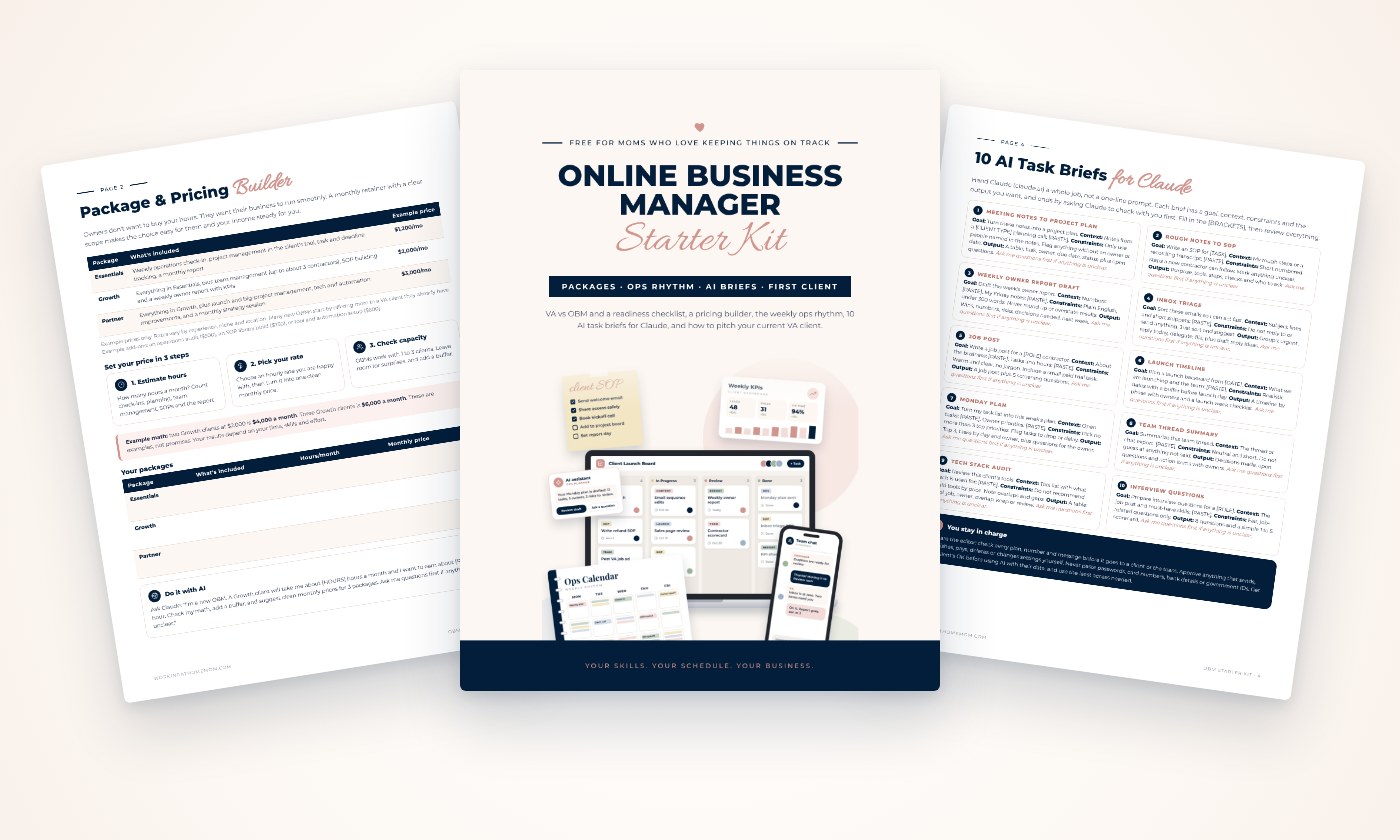
Get 10 ready-to-paste AI task briefs
Example OBM packages and pricing, a one-page weekly ops rhythm, 10 ready-to-paste AI task briefs and a script to pitch your current VA clients. Sent straight to your inbox.