AI won’t replace a good social media manager, but it can give you back hours every week. The right AI tools for social media managers help you brainstorm faster, design quicker, stay on schedule and turn messy numbers into clear reports, so you can serve more clients without working every evening.
In this guide we cover the main categories of tools, what each one is good for, copy-paste prompts, and how to use AI responsibly, including what to tell your clients.
AI tools for social media managers: the quick answer
- Writing and strategy: Claude or ChatGPT for content ideas, captions, calendars and repurposing.
- Design: Canva and its AI features for graphics, resizing and quick edits.
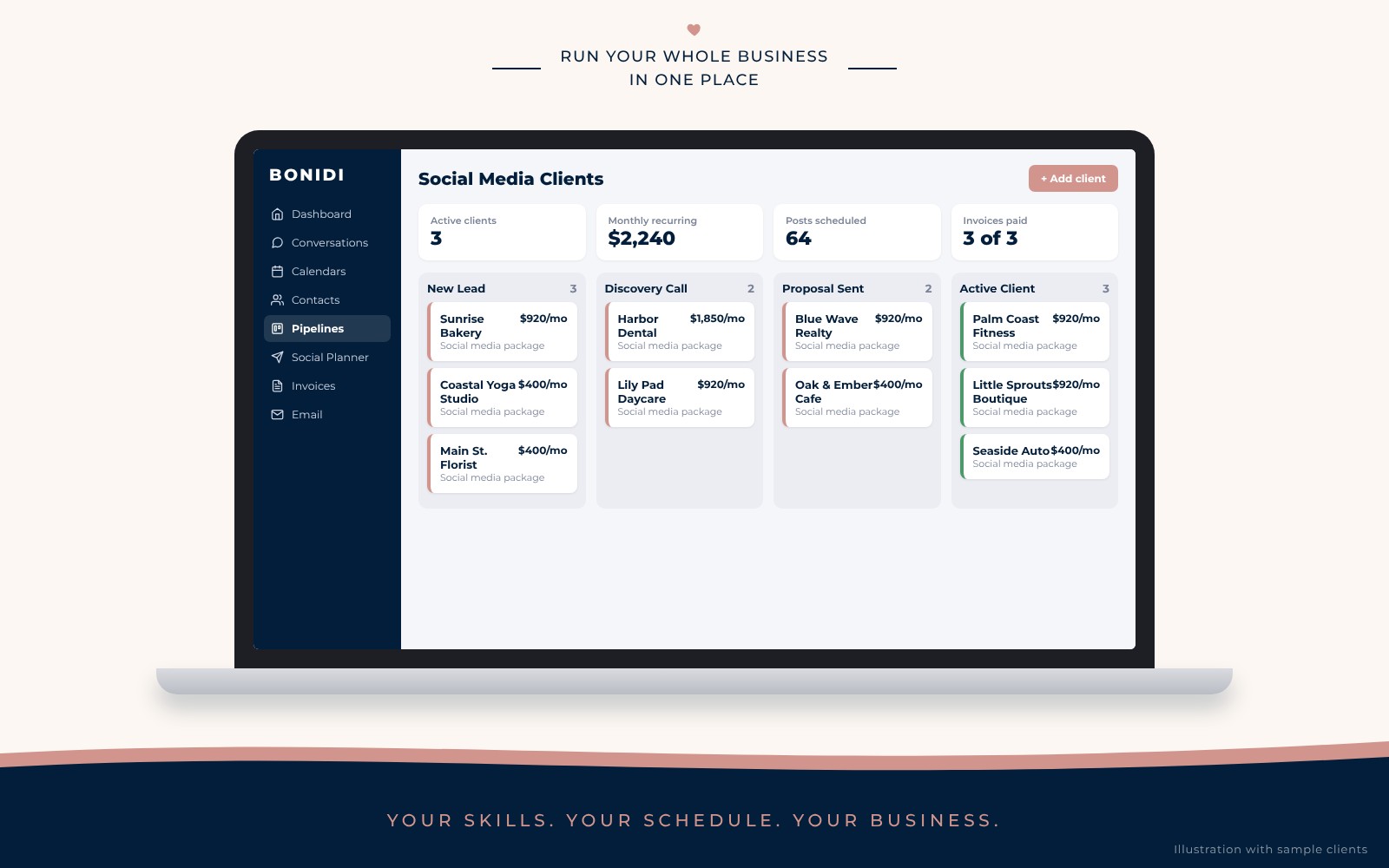
- Scheduling: a social planner, like the one in Bonidi, to schedule and manage posts in one place.
- Video: Canva’s video editor and the built-in editors in Instagram and TikTok, with features like automatic captions.
- Analytics and reporting: each platform’s insights, Google Sheets, and AI to summarize what the numbers mean.
- Always: check facts, edit for the client’s voice, protect client data and be open about how you use AI.
How to choose AI tools (without drowning in subscriptions)
New AI tools launch every week. You don’t need most of them. Before adding one, ask:
- Does it save real time on a task I do for every client?
- Does it fit my workflow, or will I spend hours learning it?
- What happens to client data I put into it?
- What does it cost? Features and plans change often, so check current pricing before you commit.
Most social media managers can run a solid business with one AI assistant, Canva, a scheduler and a spreadsheet.
1. Writing captions and planning strategy: Claude and ChatGPT
AI assistants like Claude and ChatGPT are the most flexible tools in your kit. Think of them as a fast, tireless brainstorming partner. They’re great for:
- Content pillars: turning a client’s goals into 4 or 5 themes to post about.
- Monthly calendars: a month of post ideas in minutes, which you then refine.
- First-draft captions: in different lengths and tones, with calls to action.
- Repurposing: turning one blog post, video or testimonial into several posts.
- Hooks and headlines: 10 opening lines for a Reel or carousel.
- Replies: drafting friendly responses to common comments and questions.
To get on-brand results, give the AI context: who the client is, their audience, tone of voice, words they never use, and a few past posts they liked. Both Claude and ChatGPT let you organize work into projects, so you can keep each client’s brand notes in one place instead of pasting them every time.
Do it with AI: open Claude (or ChatGPT) and paste: “You’re helping me manage social media for [CLIENT BUSINESS], a [TYPE OF BUSINESS] serving [AUDIENCE] in [LOCATION]. Their tone is [TONE] and they never [THINGS TO AVOID]. Their goal this month is [GOAL]. Suggest 4 content pillars, then write 12 post ideas for [PLATFORM] with a hook, a caption under 120 words and a call to action for each. Flag anything I should confirm with the client.” Then check and edit every post for accuracy and voice before you share it.
2. Design: Canva’s AI features
Canva is a favorite for social media managers because it’s easy to learn and full of templates. Its AI tools, grouped under Magic Studio, add even more speed. Depending on your plan, you can use features to:
- Generate design ideas: describe what you need and get starting layouts.
- Write text: Magic Write drafts headlines and short copy inside your design.
- Resize designs: turn one post into versions for different platforms and formats.
- Edit photos: remove backgrounds, erase distractions or extend an image.
- Stay on brand: save a client’s colors, fonts and logos in a brand kit.
Some AI features are included on free plans with limits, and others need a paid plan. Canva updates these often, so check its current plans and pricing.
Tip: build a branded template set for each client (quote post, tip post, testimonial, offer and announcement). Then AI and templates do the heavy lifting, and every post still looks like it belongs.
3. Scheduling: social planners
Scheduling tools let you plan a week or a month of posts in one sitting, which is a lifesaver when you’re working around school runs and nap times. Look for:
- Multi-account support: so you can switch between clients easily.
- A calendar view: to see the whole month at a glance and spot gaps.
- Drafts and approvals: so clients can review before anything goes live.
- Platform support: confirm it works with the platforms your clients use.
Bonidi, the all-in-one system we use, includes a social planner for scheduling and managing posts from one dashboard, alongside its calendar, invoicing and forms. Many platforms also offer built-in scheduling, which can work if you only manage one or two accounts.
4. Video editing
Short-form video takes the most time for most social media managers, so this is where AI features can help a lot:
- Automatic captions: Canva’s video editor can generate captions, and Instagram and TikTok offer captions in their apps too. Always proofread them.
- Templates and trimming: quick cuts, transitions and text overlays in Canva or the built-in app editors.
- Scripts and shot lists: ask Claude or ChatGPT for a 30-second script and a list of clips the client can film on their phone.
- Client walkthroughs: record a quick Loom video to explain a content calendar or report.
5. Analytics and reporting
Clients don’t want a pile of numbers. They want to know what’s working and what you’ll do next. A simple reporting workflow:
- Pull the numbers from each platform’s built-in insights.
- Drop them into Google Sheets so you can compare month to month.
- Ask AI to summarize: paste the key figures (not private customer data) and ask for plain-English takeaways.
- Add your judgment: you know the context, like a holiday or a slow week.
- Share a one-page report with 3 wins, 1 or 2 lessons and next month’s plan.
Do it with AI: open Claude (or ChatGPT) and paste: “Here are last month’s social media results for [CLIENT BUSINESS]: [PASTE KEY NUMBERS AND TOP POSTS]. The client’s goal is [GOAL]. Write a one-page summary for a busy business owner: 3 wins, 1 or 2 things to improve, and 3 specific actions for next month. Use plain English and no jargon.” Then check every number against your data and edit the recommendations so they fit what you know about the client.
6. Staying organized
AI works best inside a clear system. Use Trello or Asana to track each client’s content from idea to approved to scheduled, and Calendly for discovery calls and monthly check-ins. Fewer dropped balls means happier clients.
How to use AI responsibly as a social media manager
Your clients trust you with their brand. These habits protect them, and you:
- Check every fact: AI can state wrong details confidently, like prices, hours, dates or claims. Confirm with the client.
- Edit for voice: AI drafts can sound generic. Make every post sound like the business.
- Never fake social proof: no invented reviews, testimonials or results. In the US, the FTC has rules against fake reviews and testimonials, including ones written by AI.
- Be careful with images: don’t create images that look like real people, real customers or other brands’ products, and make sure you have the rights to what you post.
- Protect client data: don’t paste passwords, private customer details or confidential plans into AI tools. Check each tool’s privacy and data settings.
- Follow platform AI labels: some platforms ask you to label realistic AI-generated or AI-edited images and video, and some add labels automatically. The rules change, so check each platform’s current guidelines.
Should you tell clients you use AI?
We think yes. Being upfront builds trust and avoids awkward surprises later. Some clients are excited about it. Others, especially in regulated industries, may have rules about AI-created content.
A simple way to handle it is to add a short line to your proposal or contract, such as:
“I use AI tools to help with brainstorming, first drafts and reporting. Every piece of content is reviewed, edited and approved by me before it reaches you, and I never enter your confidential information into AI tools.”
Also agree on who owns the final content and whether the client has any AI restrictions. Disclosure and AI rules vary by location and industry, so check local requirements or talk to a professional if you’re unsure.
A sample AI-assisted month for one client
- Week 1: use Claude or ChatGPT to draft the content calendar, then edit and send it for approval.
- Week 2: create graphics and videos in Canva using the client’s brand kit and templates.
- Week 3: schedule everything in your social planner and handle engagement.
- Week 4: pull the numbers, use AI to draft the summary, then finalize the report and plan next month.
If you’re just starting out, read how to become a social media manager first, then use our social media manager proposal template to explain your AI-assisted process to clients.
Work faster with 5 built-in AI assistants
Our Social Media Manager Business-in-a-Box shows you how to use AI the right way for planning, captions, proposals and reports. It includes 12 modules, 15 templates and 5 AI assistants to land your first social media clients.
AI for social media managers FAQ
Will AI replace social media managers?
AI can handle first drafts and repetitive tasks, but businesses still need someone who understands their brand, checks the work, manages the community and makes decisions. Managers who use AI well can often serve more clients.
What is the best AI tool for social media captions?
Claude and ChatGPT both work well for captions when you give them clear context about the client, audience and tone. The best results come from editing the drafts, not posting them as-is.
Do I have to tell clients I use AI?
It isn’t always required, but we recommend it. A short line in your proposal or contract explaining how you use AI, and that you review everything, builds trust.
Do I need to label AI-generated content on social media?
Some platforms ask you to label realistic AI-generated or AI-edited images and videos, and some apply labels automatically. Check each platform’s current rules before posting.
Can I use free AI tools as a social media manager?
Yes. Many AI assistants and design tools have free versions that are enough to start. As you add clients, a paid plan may save time, so compare current plans and pricing when you’re ready.
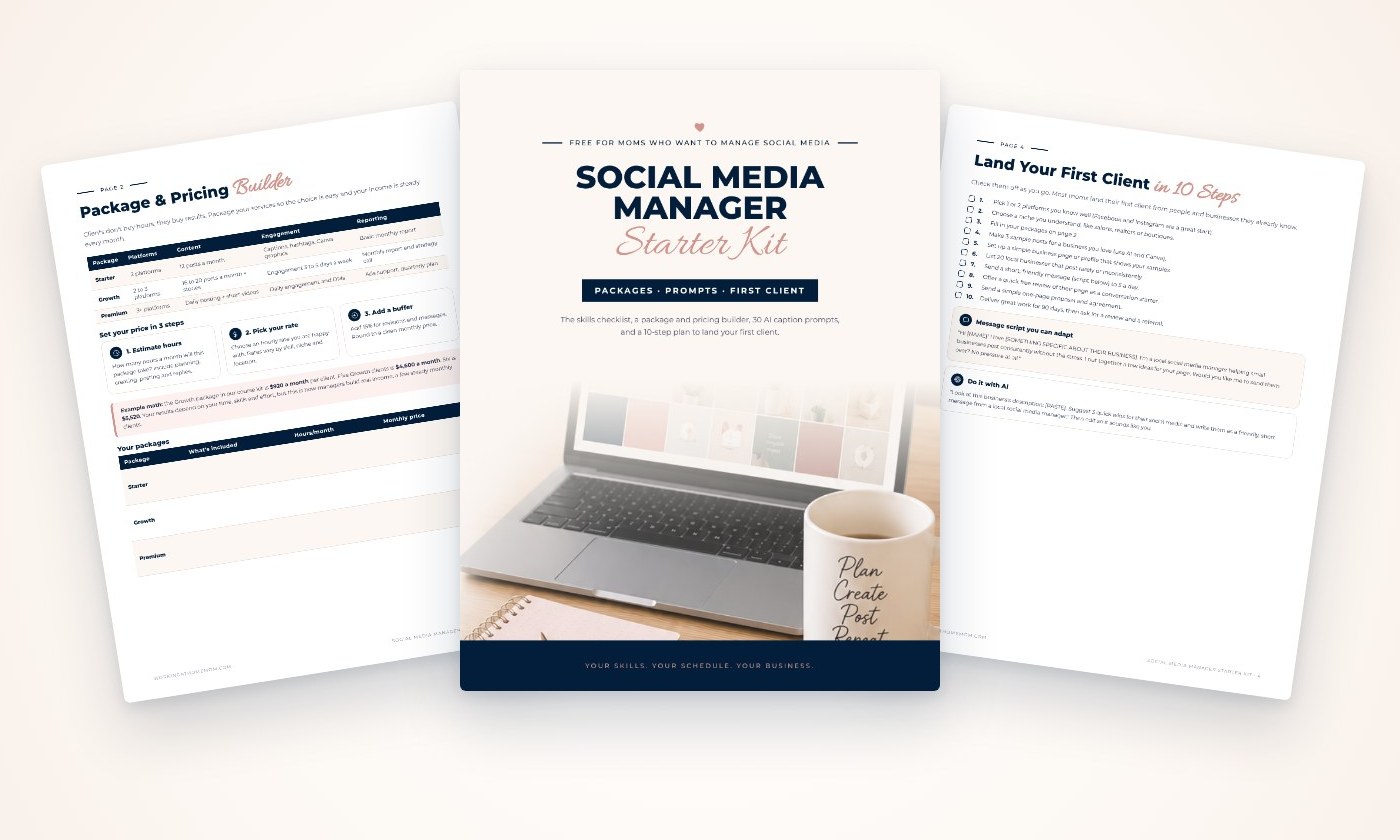
Get our free Social Media Manager Starter Kit
A package and pricing builder with real example math, 30 AI caption prompts and a 10-step plan to land your first client. Sent straight to your inbox.